



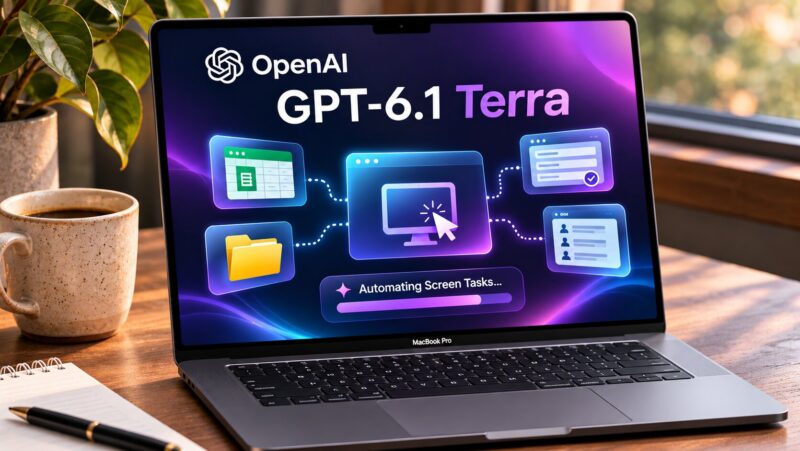
Repetitive screen work, like copying spreadsheet rows into forms or renaming stacks of invoices, eats hours that could go to real decisions. OpenAI released GPT-6.1 Terra on October 26, 2026, to take on exactly that kind of visual, software-based routine work, and this workflow guide shows how to use it to automate screen tasks without losing control of the results.
What does GPT-6.1 Terra actually automate?
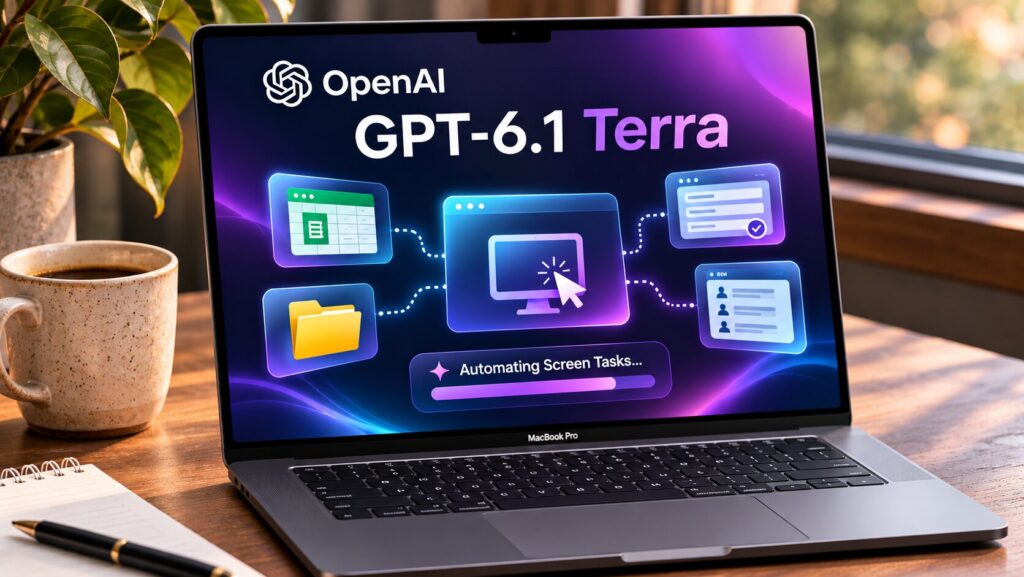
GPT-6.1 Terra is an OpenAI GPT-6 series model built for fast visual reasoning, writing and computer use. Paired with supported computer-use tools in ChatGPT Work or Codex, it can read what is on screen, move through menus, enter text and work application controls, so routine data entry and file organization can be prepared for you to review.
Why GPT-6.1 Terra matters for workflow efficiency
Chat-style AI explains how to do a task. GPT-6.1 Terra, when connected to compatible computer-use tools, can help carry out the steps. That difference matters most for work that jumps between programs, such as moving customer details from a spreadsheet into a customer relationship management (CRM) system, one form at a time.
Efficiency is the headline. According to OpenAI’s GPT-6.1 Terra announcement, Terra’s standard API prices are 50% lower than those of GPT-5.6 Terra and GPT-6.1 Sol. OpenAI also reports that Terra finished tasks more than three times faster than GPT-6 Astra and GPT-6.1 Sol on its computer-use evaluations.
Those are OpenAI’s own test results. Real-world speed still depends on the software you use, how complex the task is and which tools are connected.
Key terms in plain language
- Computer use: an AI model working inside software interfaces, reading the screen and clicking or typing, instead of only answering in chat.
- ChatGPT Work: the ChatGPT workspace for general business workflows, where Terra is offered.
- Codex: OpenAI’s environment for code, development tools and software repositories.
Where GPT-6.1 Terra fits among OpenAI’s models
Choosing the lightest model that can do the job is a basic efficiency habit. The source guide frames OpenAI’s lineup this way:
| Model | Best suited for | Main advantage |
|---|---|---|
| GPT-6.1 Terra | Screen-based tasks, visual analysis, routine admin work, writing | Fast and cost-efficient |
| GPT-6.1 Sol | Complex coding, debugging, multistep professional tasks | Stronger reasoning for demanding workflows |
| GPT-6 Astra | Advanced research, scientific problems, hard technical decisions | OpenAI’s highest-capability reasoning option |
Renaming a folder of invoices does not need a top reasoning model. Designing a complex application might. A sensible approach is to start with the model that matches the task and step up only when the output falls short.
A five-part workflow to automate screen tasks with Terra
1. Pick the right workspace
Open the official ChatGPT desktop app on Windows or macOS and sign in. Choose ChatGPT Work for business workflows, or Codex for code and repositories. Terra is offered in supported Work and Codex environments, not in the standard Chat experience. Web and mobile access to Work exist, but working with local desktop files and apps needs a supported desktop setup.
2. Select the model
Inside Work or Codex, open the model options and choose GPT-6.1 Terra. If it is missing, check that your plan and workspace support it; organization-managed accounts can have administrator restrictions. OpenAI’s guide to getting started with Work and Codex covers access, local files and feature availability. Admins planning a rollout may also find our explainer on streamlining access management for remote employees useful.
3. Scope the access
Give Terra only what the task needs. For invoice work, put copies of the documents in a dedicated folder rather than opening a whole drive of unrelated files. Follow the permission prompts and limit access to the relevant folders or apps.
4. Write a four-part instruction
Short, clear instructions beat long ones. The source article’s invoice example works because it covers four things: which files to use, what information to extract, how to organize results, and what to do when something is unclear.
“Review the invoices in my Q4 Receipts folder. Identify the invoice date, vendor, and total amount. Rename the copied files using those details and organize them into monthly folders. If any information is missing or unclear, leave the file unchanged and flag it for review.”
The last line, the uncertainty rule, is what stops the model from guessing.
5. Check before you call it done
Spot-check renamed files and folder placement. Compare entered data against the source. For emails, payments, account changes or external submissions, require your approval before the final step. If invoices feed your books, pair this with a dedicated tool; see our roundup of the best software for billing.
Three efficient use cases from the source guide
- CRM data entry: Terra enters spreadsheet contacts into an open CRM form, skips records missing required fields, lists what is missing and stops before submitting.
- Invoice and receipt filing: Terra extracts date, vendor and amount from PDF invoices, renames copies as YYYY-MM-DD_Vendor_Amount.pdf and sorts them into monthly folders.
- Repetitive online forms: Terra fills supplier, inventory or service-request forms from an approved spreadsheet, never guesses missing data, and stops before submission.
For web-based tools, OpenAI explains how to work with the built-in browser in the ChatGPT desktop app, including tabs, sign-ins and browser permissions.
Scale slowly to keep the efficiency gains
The guide’s advice is to test small. If you have 500 records, run five or ten first, check accuracy, fix recurring mistakes in your instructions, then increase the volume. It feels slower at first but saves cleanup time later.
Terra can still struggle when a site changes its layout, a document is blurry or incomplete, an app asks for extra authentication, or the needed information sits outside the permitted workspace. For processes that run hundreds of times, a direct integration or API-based automation may be more dependable than screen interaction. Computer use shines when software has no convenient integration and a person would otherwise click through several apps by hand.
Key takeaways
- GPT-6.1 Terra, released October 26, 2026, is OpenAI’s fast, cost-efficient model for visual reasoning, writing and computer use.
- It runs in supported ChatGPT Work and Codex environments and the OpenAI API, not in standard Chat.
- OpenAI reports 50% lower standard API prices than GPT-5.6 Terra and GPT-6.1 Sol, and over three times faster task completion on its computer-use tests.
- Good prompts name the files, the data, the output format and the rule for unclear cases.
- Start with five or ten items, review the results and require approval for high-impact actions.
Frequently asked questions
Is GPT-6.1 Terra available in regular ChatGPT?
No. GPT-6.1 Terra is offered through supported ChatGPT Work and Codex experiences and through the OpenAI API, not as a standard Chat model. Whether you see it depends on your plan and workspace settings, and organization admins can restrict which models are available to their teams.
Do I need coding skills to automate screen tasks with Terra?
Not necessarily. In supported ChatGPT Work workflows you describe the task in everyday language, such as which files to review and what to extract. Developers who want custom applications or automated systems can reach the same model through the OpenAI API, which is billed separately from ChatGPT subscriptions.
How much does GPT-6.1 Terra cost through the API?
OpenAI lists standard API pricing at $1 per million input tokens and $5 per million output tokens, with separate pricing for cached input. Those token prices are 50% lower than GPT-5.6 Terra and GPT-6.1 Sol. Some tools may add charges, and API billing is separate from ChatGPT plans.
Is GPT-6.1 Terra suitable for business automation?
It can suit routine administrative workflows, document handling, visual analysis and supported software interactions. For business-critical processes, the source guide recommends starting with a small test, verifying the output and setting approval requirements before you expand the workflow to larger volumes or more sensitive systems.
Start with one repetitive task
You do not need to automate the whole workday. Pick one task you repeat often, with clear steps and results that are easy to check, and test it with Terra. Once you know where human review is needed, decide what else is worth handing off. Curious how other AI skills are being recognized? Read our answer to whether there is a ChatGPT certification.